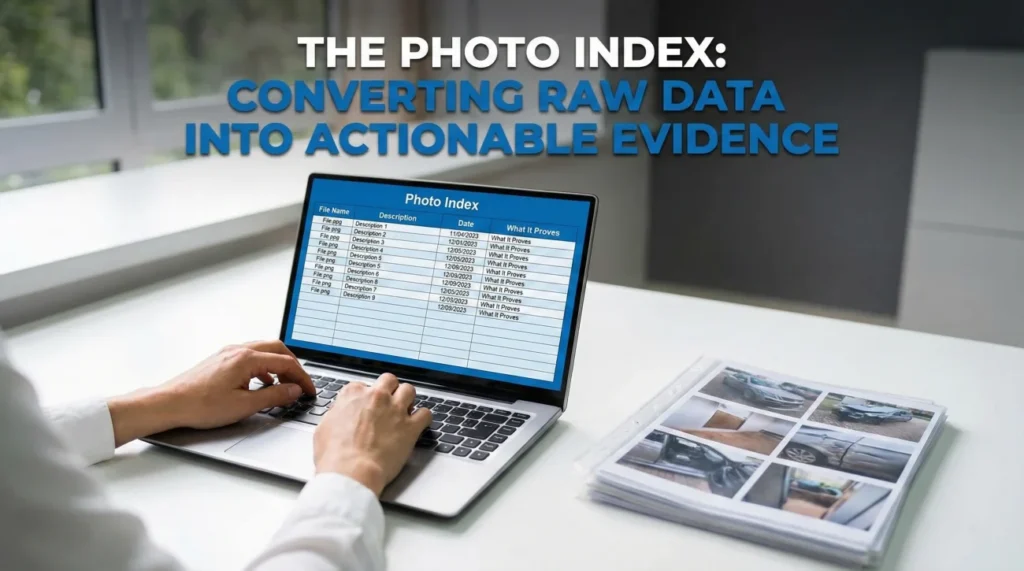
- The Problem: Adjusters often review hundreds of photos a day. If you send a batch of 50 unnamed photos, they will likely miss the subtle details that prove your claim.
- The Solution: A Photo Index is a simple document (usually a spreadsheet) that acts as a “Table of Contents” for your evidence.
- Key Columns: It must connect the “File Name” to the “Description” and the “What it Proves” argument.
- The Benefit: It allows you to reference specific evidence in your emails (e.g., “See Line 12 of the Photo Index”) rather than attaching files repeatedly.
- Action Item: Create this index immediately after organizing your folders, before you submit your first packet.
The “Adjuster Fatigue” Factor
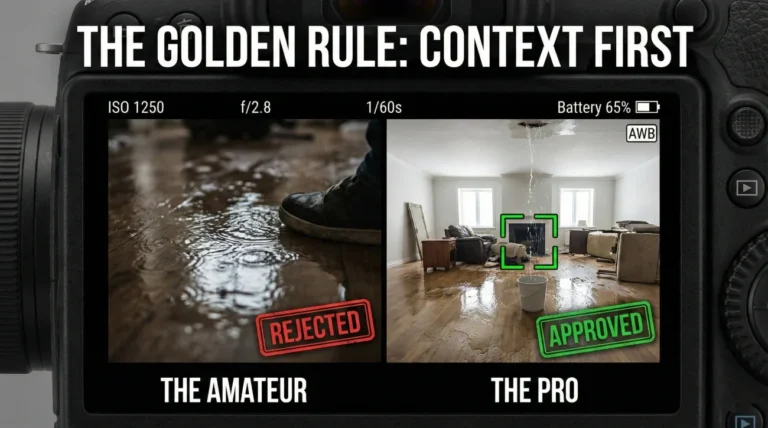
In my years handling claims, I have seen a recurring tragedy: a homeowner does everything right. They take the photos, they save the receipts, but they still get denied. Why? Because they dumped 150 unnamed files onto an overworked adjuster’s desk and expected them to figure it out. I call this the “Haystack Strategy,” and it fails every time. If you want your claim paid, you cannot just provide the data; you must provide the map. That is what a Photo Index does. It turns a pile of confusing images into a clear, undeniable narrative.
I want you to imagine my reality when I was reviewing files. I would open a claim, click on the “Photos” tab, and see 150 files named “IMG_001.jpg” through “IMG_150.jpg.” I would click the first ten. They were random close-ups of wet carpet, a ceiling stain, and a blurry roof shingle. I had no idea which room was which or what date they were taken.
In claims operations, we call this “Adjuster Fatigue.” When evidence is disorganized, the human brain stops looking for details and starts looking for patterns to close the file quickly. This is often where valid damages get overlooked or marked as “investigation inconclusive.”
My goal for you is to make it impossible for them to miss the point. You do this not by sending more photos, but by sending a map. An insurance claim photo index is that map. It connects the visual evidence to the financial demand. This indexing strategy is a critical component of the broader property insurance claim evidence checklist, ensuring that every piece of proof you capture actually lands with impact.
Structuring a Functional Index
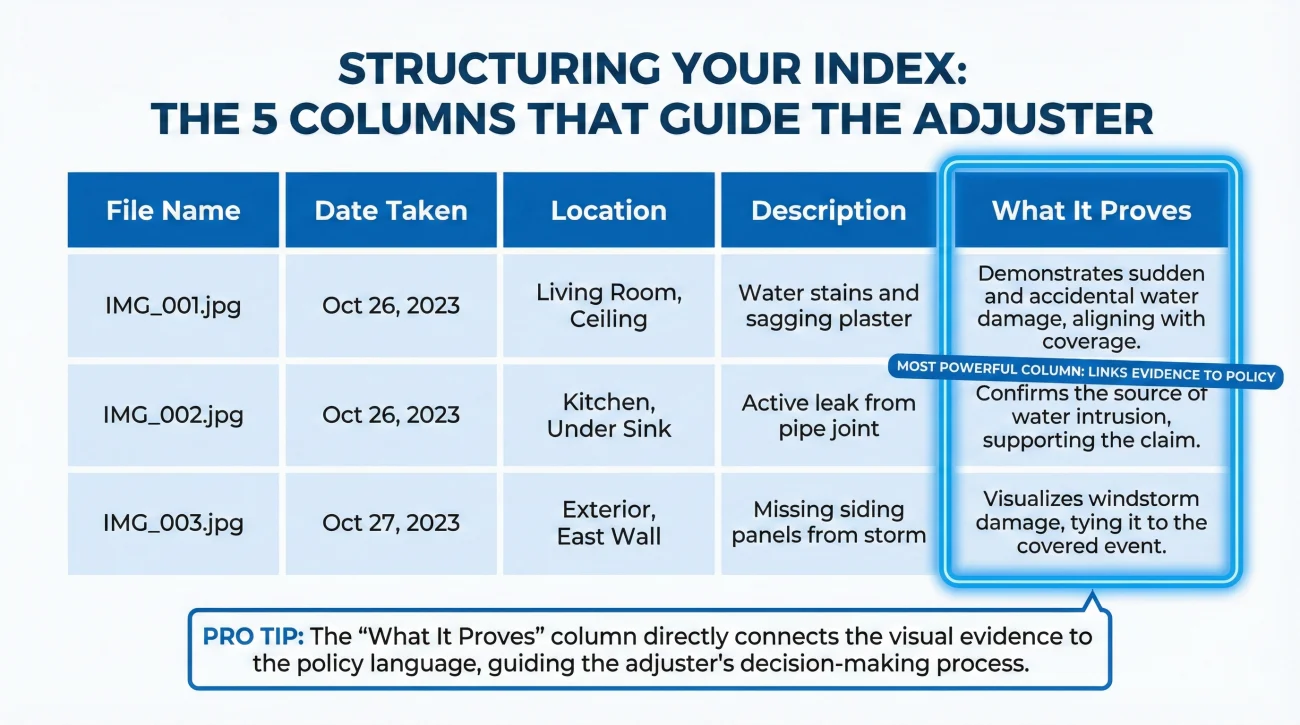
You do not need fancy software. In my experience, a simple spreadsheet (Excel, Google Sheets) or a Word table works best. The format should be clean and readable. I recommend a standard 5-column layout.
| File Name | Date Taken | Location | Description | What It Proves |
|---|---|---|---|---|
| Kitchen_01.jpg | 10/12/2023 | Kitchen Under Sink | Active leak at supply line | Sudden burst (not long-term leak) |
| Roof_Overview.jpg | 10/15/2023 | Front Slope | Missing 3 tabs of shingles | Wind damage matches storm date |
Why I Insist on These Columns:
- ✅ File Name: This must match the actual file exactly. If you renamed the file in your “Working” folder, use that new name here.
- ✅ Date Taken: This helps establish the timeline and supports that the damage happened during the policy period.
- ✅ What It Proves: This is the most powerful column. I tell my clients: Don’t just say “wet floor.” Say “water migrating from wall, proving source is internal.” You are connecting the dots for the adjuster.
Index Scope Rules: What to Include
Not every photo belongs in the index. A bloated index is just as bad as no index. Based on what I’ve seen work best, follow these rules to keep it lean and potent:
- Submit Only, Index Only: Only index the photos you are actually submitting in the current packet. Do not index photos you are keeping in reserve.
- One Line, One Thought: Each line in the spreadsheet should focus on one specific claim point. Do not try to describe the whole room in one cell.
- Specific Directions: Use locations based on a standard house map (e.g., “Master Bedroom North Wall”) rather than vague terms like “Back Bedroom.”
- Batch Consistency: If you rename photos using a “Date_Location” format, ensure the index uses the exact same string. A single typo breaks the searchability.
Field Note: The “Pre-Existing” Defense
I worked on a claim where a tree fell on a fence. The insurance company denied it, claiming the fence was “rotted and unmaintained” prior to the storm. They pointed to a photo showing some discoloration at the bottom of a post.
The homeowner had photos from a backyard barbecue taken just two weeks before the storm. We added those to the Photo Index. We labeled them: “Pre-Loss Condition – 14 Days Prior.” In the “What It Proves” column, we wrote: “Shows fence was straight, painted, and structurally sound immediately prior to loss.”
By indexing these specific photos and explicitly stating what they proved, we forced the adjuster to look at them in context. The “rot” argument disappeared, and the fence was paid for. Without the index, those barbecue photos would have just looked like random family snapshots and likely been ignored.
Writing Descriptions That Work
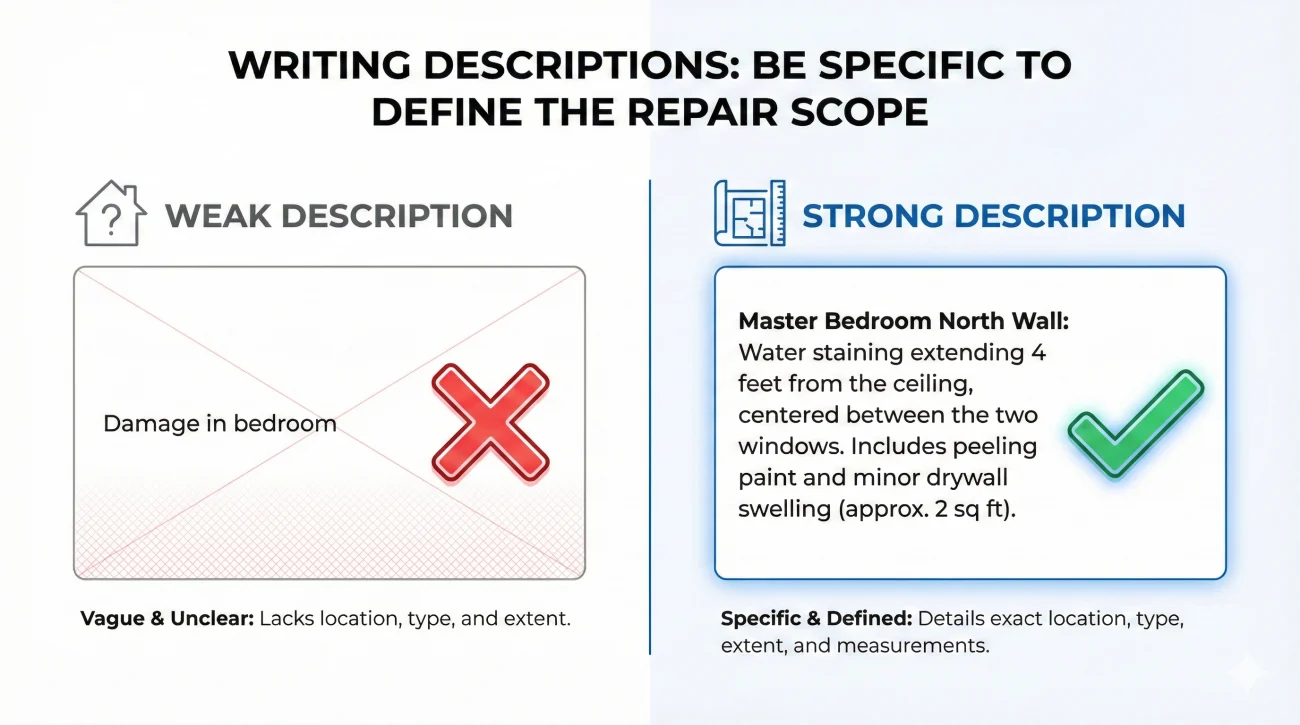
The description is your chance to testify without speaking. Avoid generic labels. Be specific about the damage and the material.
“Damage in bedroom.” (Tells the adjuster nothing new).
“Master Bedroom North Wall: Water staining extending 4 feet from ceiling, affecting drywall and baseboard.” (Defines the scope of repair).
To make the “What It Proves” column effective, I tailor it to the type of loss:
- 💧 Water Claims: “Shows wicking up MDF baseboard, replacement required (cannot be sanded).”
- 💨 Wind Claims: “Shows missing tabs aligned with storm-facing slope, consistent with wind direction.”
- 🔥 Fire/Smoke Claims: “Shows soot staining pattern consistent with smoke migration from kitchen to hallway.”
Common Indexing Mistakes
Even organized people make these errors, which I’ve seen confuse the review team time and again:
- Describing the Picture, Not the Meaning: Don’t write “Photo of carpet.” Write “Carpet saturation extending 3 feet from wall.”
- Vague Locations: Using “Kid’s Room” or “Guest Room” is confusing if the adjuster’s floor plan just says “Bedroom 2” and “Bedroom 3.” Use cardinal directions (NW Bedroom) or permanent fixtures (Bedroom with En-suite) to clarify.
- Filename Mismatch: If your spreadsheet says “Kitchen_01.jpg” but the file attached is “IMG_9988.jpg”, the adjuster will give up trying to match them.
- No Version Control: Sending an updated index without a date or version number makes it hard to know which one is current.
The Update Workflow: Version Control
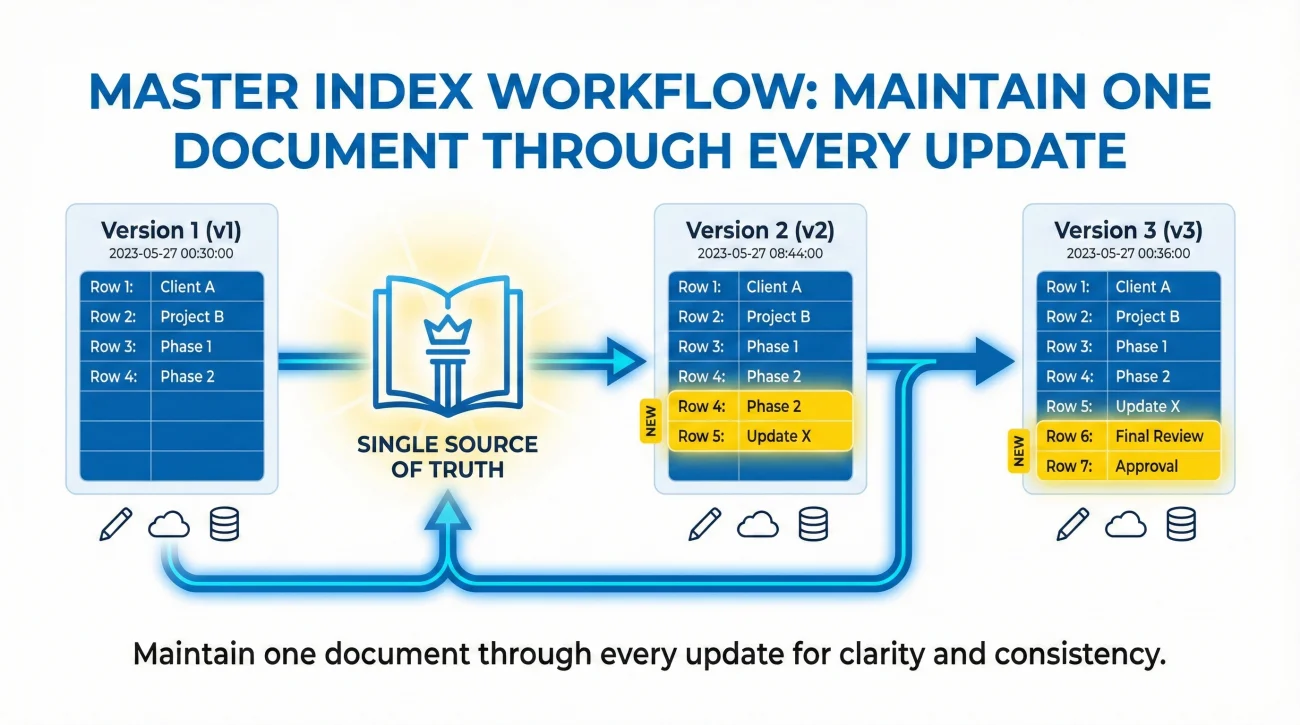
Your claim is a living thing. You will take more photos as repairs progress. Do not create a new index file from scratch every time. Maintain one “Master Index” file and use versioning.
Add two columns to your spreadsheet: “Submission Date” and “Index Version” (e.g., v1, v2). When you send new evidence, add it to the bottom of the list and mark it “v2”. I often suggest highlighting these new rows in yellow.
This creates a single source of truth. If the claim gets reassigned to a new adjuster (which happens frequently), I simply advise my clients to hand them the “Master Index v3”. They instantly know the entire history of the damage without needing to dig through months of emails.
The Field Adjuster Handoff
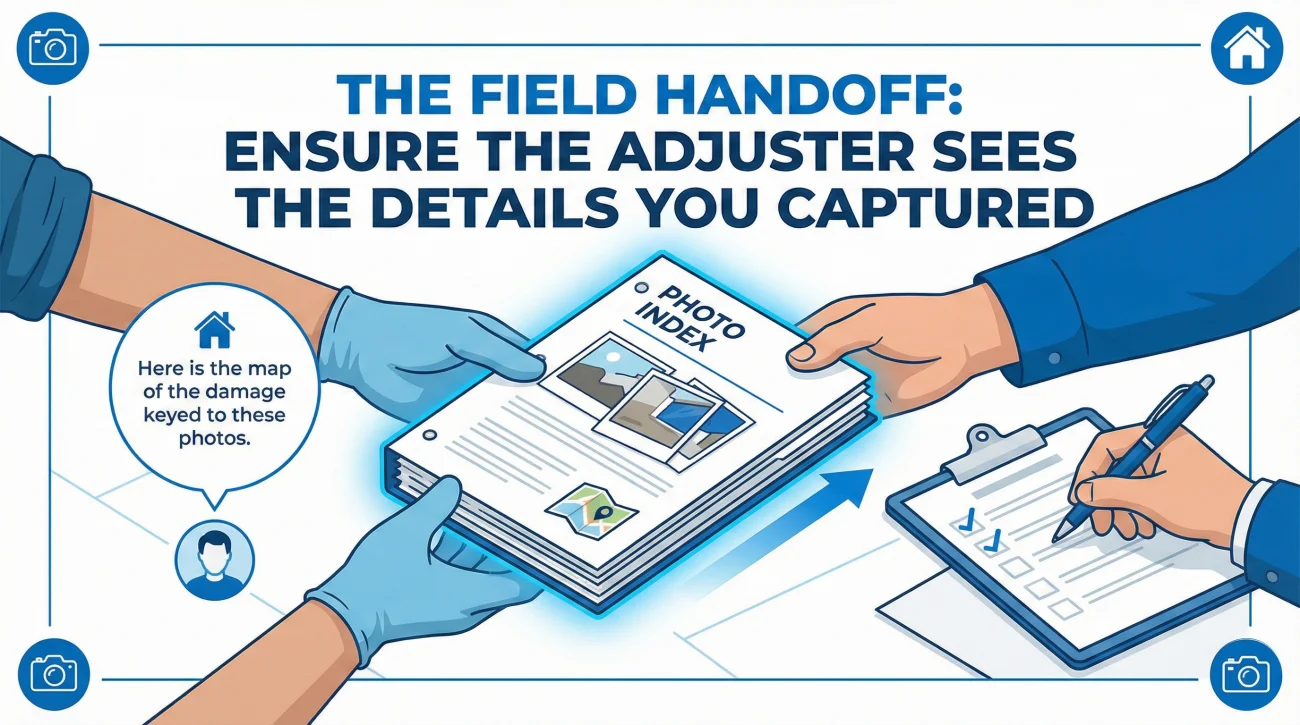
The Photo Index isn’t just for email. It is a powerful tool during the physical inspection. When the field adjuster arrives at your door, they are often rushing to get through the appointment.
I always tell homeowners: Print a physical copy of your Photo Index and staple it to the 10 most critical printed photos. Hand this packet to the adjuster. Say, “Here is a map of the damage I’ve documented, keyed to these photos.” Ask them to note in their file that they received the “Photo Index.” This ensures that even if they rush the inspection, they have a physical guide forcing them to look at the details you captured.
How to Use the Index in Arguments
The real power of the Photo Index comes during negotiation. When you are writing a supplement request or arguing for a higher payout, you can reference the index instead of attaching files.
Instead of saying “Look at the photos I sent,” you can write:
This sounds professional, organized, and authoritative. It saves you from having to re-upload 10MB of images, and it saves the adjuster from having to search for them. It removes the friction from saying “yes” to your request.
Structure vs. Contents: When to Split
Should you put everything on one sheet? For smaller claims, yes. Just add a “Category” column to filter between “Structure” and “Personal Property.”
However, for large losses (like a whole-home fire or major flood), I strongly recommend maintaining two separate index files: one for the Dwelling (Structure) and one for Contents (Personal Property). Why? Because insurance carriers often split these claims between two different adjusters or departments. The “Contents Team” doesn’t care about the drywall photos, and the “Structure Team” doesn’t care about your toaster. Sending a split index ensures the right data hits the right desk faster.
Final
A pile of photos is just data. A Photo Index is information. By taking the time to catalog your evidence, you are doing the cognitive heavy lifting for the adjuster. You are guiding their eyes to the damage you want them to pay for and the condition you want them to acknowledge. It is a small administrative investment that pays off by preventing the “we didn’t see that” denial.
❓ FAQ
📝 Do I have to use Excel for my photo list?
No, but it is the most efficient tool. You can use Google Sheets, a Word table, or even a handwritten list if your handwriting is clear. The key is the structure (columns), not the software.
📸 Should I rename the files to match the index?
Yes. The file name in the folder must match the file name in the “File Name” column of your index exactly. If they don’t match, the map is useless.
📧 Do I send the index as a separate file?
Yes. Send the photos as attachments (or a link), and attach the Index as a PDF or Excel file in the same email. Mention it in the body: “Please find the Photo Index attached to guide your review.”
🔢 How many photos should I include in the index?
Include every photo you submit to the carrier. If you took 500 but only submitted 50 relevant ones, index only those 50. Do not index photos you are keeping in reserve.
🏗️ Can I use the index to track contractor photos too?
Absolutely. If your contractor sends you photos of hidden damage, rename them to fit your system, add them to your Master Index, and note “Source: Contractor” in the description.
🏚️ What if I don’t know the exact date a photo was taken?
Check the file properties (metadata) on your computer or phone; the date is usually stored there. If you truly don’t know, estimate it (e.g., “Week of Oct 12”) rather than guessing a specific day.
📂 Should I create separate indexes for contents and structure?
For large claims, yes. It keeps things cleaner. For smaller claims, you can just add a “Category” column to sort them within the same sheet.
🔗 Can I put hyperlinks in the spreadsheet?
You can, but be careful. If you link to files on your local computer, the adjuster won’t be able to open them. Links only work if they point to a shared cloud folder (like Google Drive) that the adjuster can access.
🚫 What if the adjuster ignores my index?
Keep referencing it. If they ask a question that is answered in the index, reply politely: “Please refer to Line 5 of the Photo Index sent on [Date].” Eventually, they will use it because it saves them time.
📄 Should I print the index for the field adjuster?
Yes. Handing a printed copy of the index (and maybe key photos) to the adjuster during the inspection is a power move. It shows you are prepared and makes their note-taking easier.
⚠️ Disclaimer: PropertyClaimChecklist.com provides practical guidance, process checklists, and example follow-ups to help you organize a property claim and move it forward. It is not policy language, claim documentation, legal content, or a substitute for your insurer's instructions. Always rely on your carrier's requirements and your actual policy terms for what must be submitted and how decisions are made.