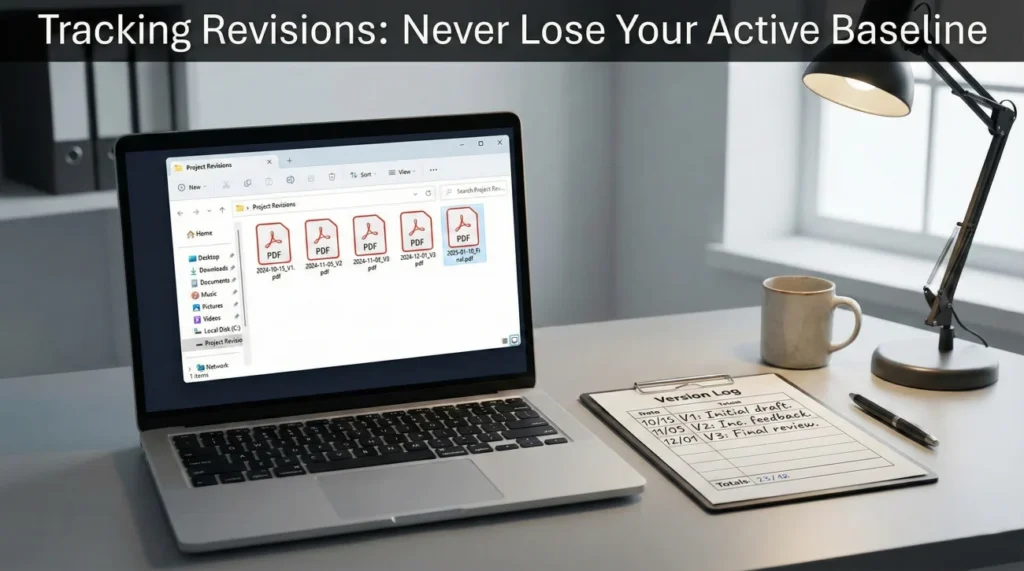
- Never overwrite an old estimate with a new one; always save and number every version you receive.
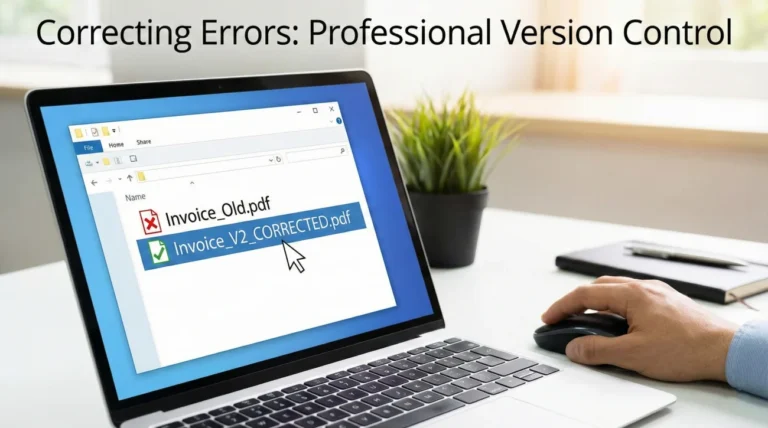
- Use an unambiguous file naming convention (e.g., YYYY-MM-DD_Version_X) to prevent opening the wrong document during calls.
- Maintain a simple written log to track the differences between estimate versions, including date received and bottom-line totals.
- When an adjuster sends a revision, always reply in writing to confirm receipt and ask for a summary of what changed.
Managing the Chaos of Multiple Claim Documents
In my experience in claims operations, the quickest way to see a file unravel isn’t always a disagreement over coverage; it is often simple version confusion. When I am tracking estimate revisions over several months, the paperwork multiplies fast. You might start with an initial field estimate, then receive a revised estimate after your contractor submits a supplement, and later get a third version adjusting material pricing.
If you are not carefully tracking these versions, you may eventually find yourself on the phone with your adjuster, arguing about a missing line item that was actually corrected two revisions ago. In many cases, I’ve seen people get frustrated simply because they were looking at the wrong PDF. This happens more often than most realize. Both parties lose time, and the professional trust in the process deteriorates, all because of a documentation gap.
Tracking estimate revisions is not about complex accounting; it is about being able to reference the active baseline during a call. When an adjuster says, “As you can see in the estimate,” you need to know exactly which document they are looking at. I want to share the system I use for naming, saving, and tracking multiple versions so you never lose the thread of what is currently approved.
Why the “Save and Overwrite” Habit Fails
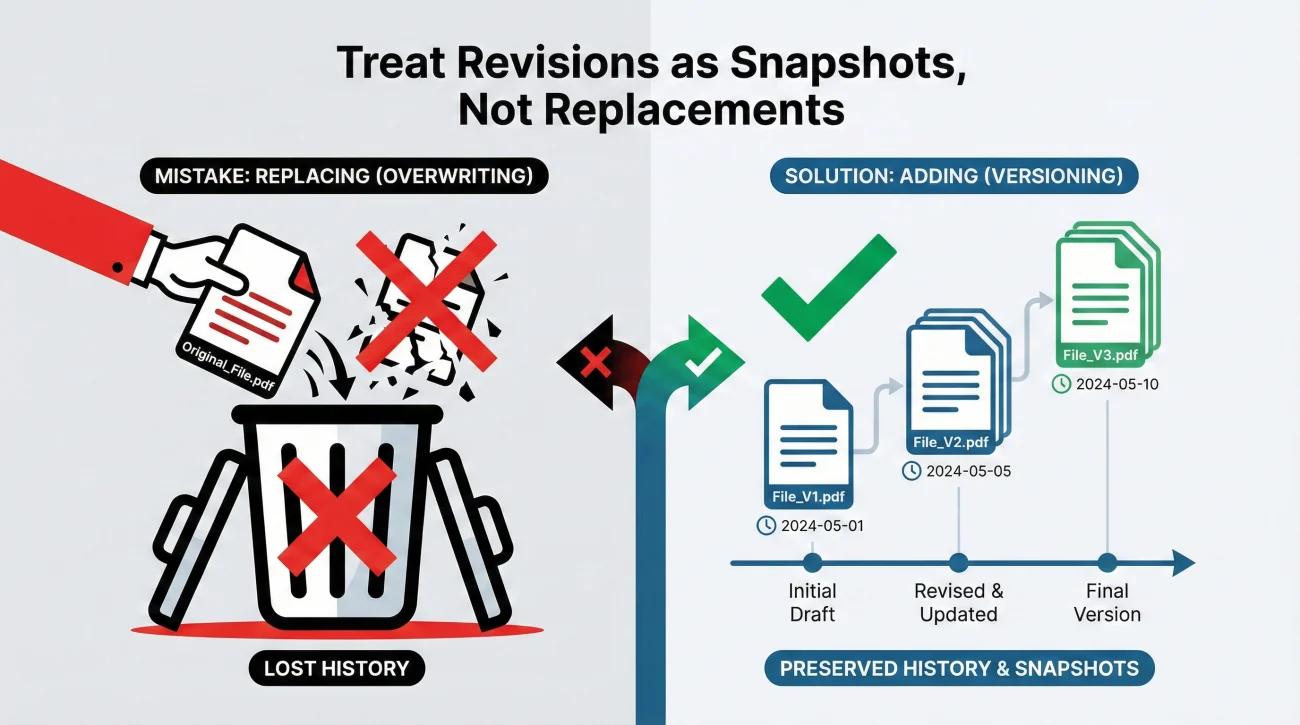
A common pattern I see when people receive a revised estimate is treating it like a working draft. They download the new PDF, it naturally gets named Estimate(1).pdf by their computer, or they manually overwrite the old file to keep their folder clean. I understand the desire for a tidy folder, but in claims, this is a risky habit.
In property claims, the historical record is your best friend. If you overwrite Version 1 with Version 2, you lose the ability to prove what was originally scoped. If a dispute arises later about when a specific room was removed from the scope of work, you need the timeline of documents to show exactly when that change occurred.
Key Point: Every estimate you receive is a snapshot in time of the insurer’s position. Keep every single one of them. Do not treat revisions as replacements; treat them as additions to your timeline.
💡 Active Baseline vs. Archive: Think of your newest estimate as your “Active Baseline”—the document you use for current negotiations. Every previous version is your “Archive”—the evidence you use to prove how the claim has evolved. Both are essential for a solid property insurance claim documents checklist.
I always suggest viewing your claim file like a ledger. You do not erase the previous entry just because you made a new one. You draw a line and add the new data. Without a clear trail of how the numbers evolved, your overarching document strategy will lack the structure needed for a successful outcome.
A Standardized Naming Convention for Revisions
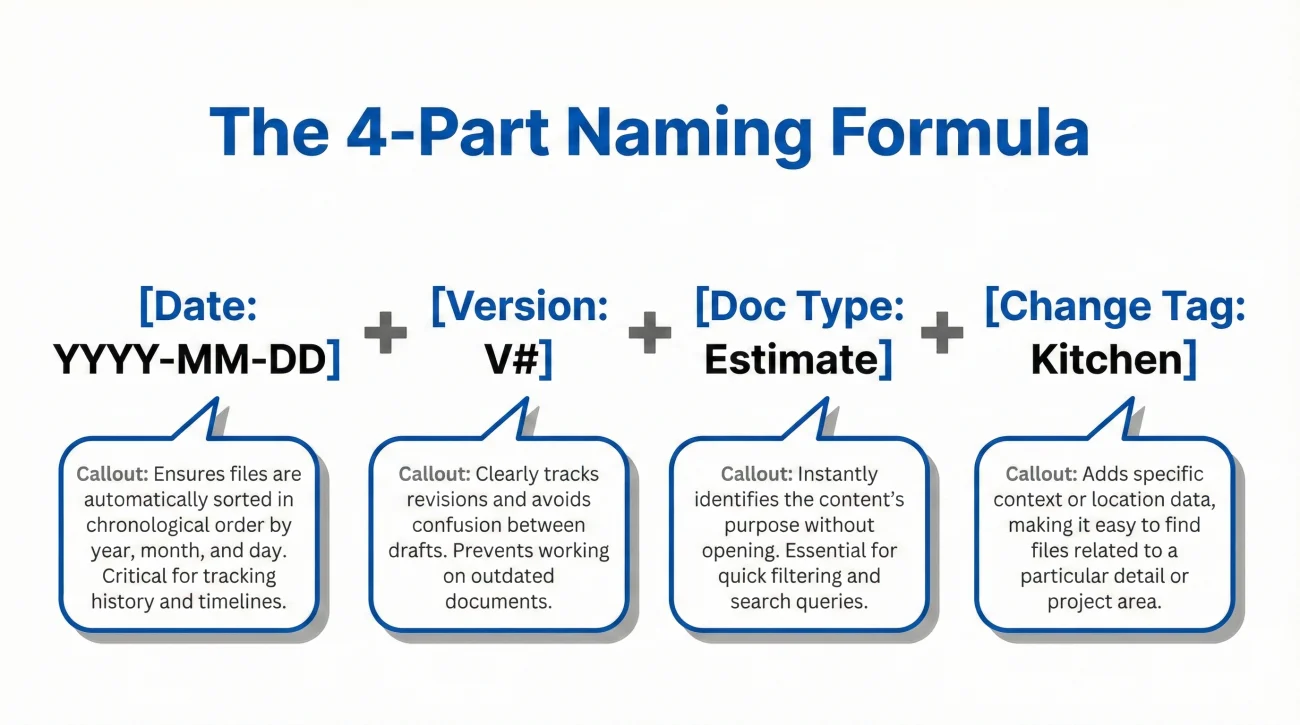
The foundation of tracking revisions is how you name the files on your computer. If your claim folder is full of files named Smith_Estimate.pdf, Revised_Est.pdf, and Final_Estimate.pdf, you are likely to experience a communication breakdown.
I prefer using a rigid, unambiguous naming convention for every piece of adjuster paperwork. The goal is that you—or anyone else looking at your folder—can sort the files by name and instantly see the chronological order of the claim.
Estimate.pdf, New_Estimate2.pdf, Supplement_approved.pdf
2023-10-12_V1_Initial_Estimate.pdf, 2023-11-05_V2_With_Roof_Supplement.pdf, 2023-12-01_V3_Final_Depreciation_Release.pdf
Components of a Clear File Name
To build an organized system, I find that every estimate file should contain these four elements in order:
- ✅ The Date: Use the YYYY-MM-DD format. This is critical because computers sort this format perfectly. Note: Use the date the estimate was issued, not the date of the loss.
- ✅ The Version Number: Explicitly write V1, V2, V3. Do not guess. If it is the third estimate they sent, it is V3.
- ✅ The Document Type: Clearly label it as an “Estimate.”
- ✅ The Key Change: Add a high-contrast tag about what triggered the revision (e.g., “Kitchen Supplement” or “Flooring Update”).
❌ Field Note: Sometimes adjusters do not put version numbers on their documents. They might just print a new date at the top. I’ve seen many files get messy because the owner didn’t assign their own version numbers. It is your job to label them V1, V2, etc., to keep your own records straight.
What Actually Changes? Understanding Revision Types
When you receive a 40-page document that looks nearly identical to the last one, it’s easy to miss the small but significant adjustments. In my work, I find that revisions usually fall into five distinct categories. Knowing these helps you perform a quick manual comparison rather than guessing.
- 🔍 Scope Additions: New line items for damage that was previously missed (e.g., adding a fence or detached shed).
- 🔍 Scope Removals: Items the insurer has decided to remove after further review or “audit.”
- 🔍 Pricing Table Updates: Adjustments to the “Price List” to reflect current local labor or material costs (common in long claims).
- 🔍 Depreciation Adjustments: Changes to how much money is being “held back” based on the age of the items.
- 🔍 Global Settings: Updates to the tax rate, overhead, or profit percentages applied to the whole estimate.
I recommend scanning the “Grand Totals” page first, but then looking specifically at the “Summary of Damages” page to see which room or category saw the biggest shift in value.
Building Your Estimate Version Log
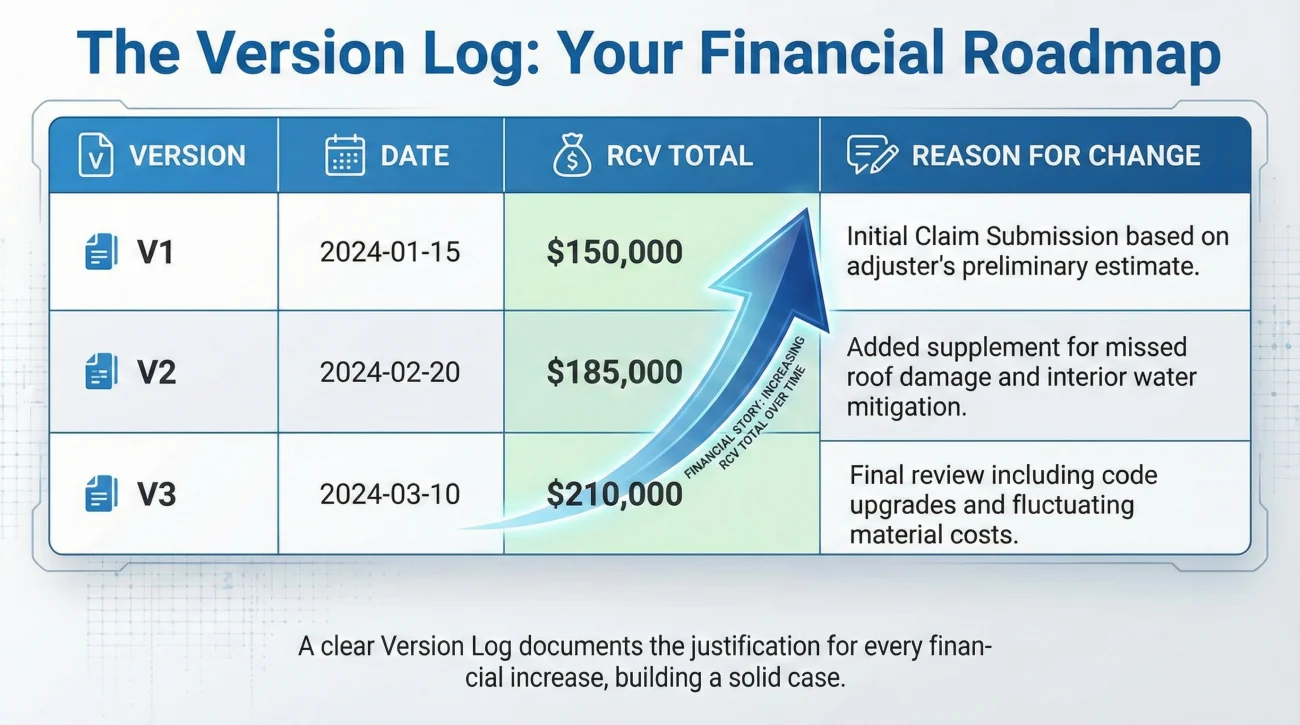
File names are great for finding documents, but they do not tell you the financial story of the claim. To track that, you need a Version Log. This doesn’t need to be complex; a simple table in a document or a physical notebook works well.
In day-to-day claims ops, the most frustrating calls occur when someone realizes the total amount changed, but they have no idea why. The Version Log forces you to isolate the changes the moment a new document arrives.
| Version | Date Received | RCV Total | ACV Total | Reason for Change |
|---|---|---|---|---|
| V1 | Oct 12 | $45,000 | $32,000 | Initial inspection |
| V2 | Nov 05 | $52,000 | $38,000 | Roof supplement added |
| V3 | Dec 01 | $54,500 | $40,500 | Local labor price update |
When you maintain a log like this, your phone calls become highly efficient. Instead of saying, “The numbers look different,” you can say, “I am looking at Version 3 from December 1st, and I see the total increased by $2,500 based on the lumber pricing.” That level of precision completely changes the dynamic of your communication with the adjuster.
Intake Habits: Processing a New Revision
Receiving a revised estimate can trigger anxiety, especially if you have been waiting for it. The natural impulse is to scan the bottom line, get frustrated if it’s lower than expected, and send an emotional email. I find it much more effective to follow a neutral intake process instead.
1. Save and Rename
I suggest not just previewing the file in your email. Download it to your dedicated claim folder immediately. Rename it using the date-first format. Getting it out of your inbox and into your organized system is the first step in taking control of the data.
2. Side-by-Side Comparison
Open the new version and the previous version side-by-side. I often find it helpful to look at the “Recap” or “Summary” pages at the end of each document first. This allows for a quick manual comparison of the major categories (like Roofing, Interior, or General Demolition).
⚠️ Warning: Estimating software like Xactimate recalculates everything globally when a change is made. Sometimes, changing a tax rate can slightly alter the math on unrelated items. Always do a quick visual scan of the entire document to ensure no approved items were accidentally removed.
3. Acknowledge Receipt
I recommend never letting a revised estimate sit unacknowledged. You want to maintain a consistent communication loop. Send a brief, polite note confirming that you received the file and noting the version number you assigned to it.
Communication Scripts for Clarity
It is a common gap in communication when an adjuster sends a long revised estimate with a simple “See attached” message. It shouldn’t be your job to spend hours searching for what changed. You can bridge this gap by asking for clarity in writing.
If you receive a revision without an explanation, use this script to request a summary. I’ve included three specific follow-up questions to help pin down the details.
Subject: Claim #123456 – Confirming receipt of Revised Estimate (V2)
Hello [Adjuster Name],
I am writing to confirm that I received the revised estimate today. I have saved this in my records as Version 2.
Because the document is detailed, could you please provide a brief written summary of what was changed? Specifically, I would like to know:
1. Which line items were added or removed in this version?
2. Was this triggered by a recent supplement or an internal pricing review?
3. Does this document replace the prior estimate globally, or is it a standalone net-add supplement?
Once I have your summary, I will review it with my contractor and follow up with any questions.
Thank you.
Handling Unannounced Revisions
Sometimes, a revised estimate shows up in your portal without any prior conversation. In many cases, this is just an internal audit, but you must document the reason. Use this simple formula:
[Acknowledge Receipt] + [State the specific total difference] + [Ask for the trigger event].
Subject: Claim #123456 – Question regarding unexpected estimate revision
Hello [Adjuster Name],
I noticed a new estimate was uploaded to my portal on [Date]. I see the total RCV changed from [Old Amount] to [New Amount].
Could you please explain in writing what internal review or pricing adjustment triggered this revision? I want to ensure my records accurately reflect why the file was updated.
Thank you.
These scripts keep the tone calm and practical. You are not accusing anyone of anything; you are simply an organized person ensuring that the claim’s history makes logical sense.
Two Ways Adjusters Issue Updates
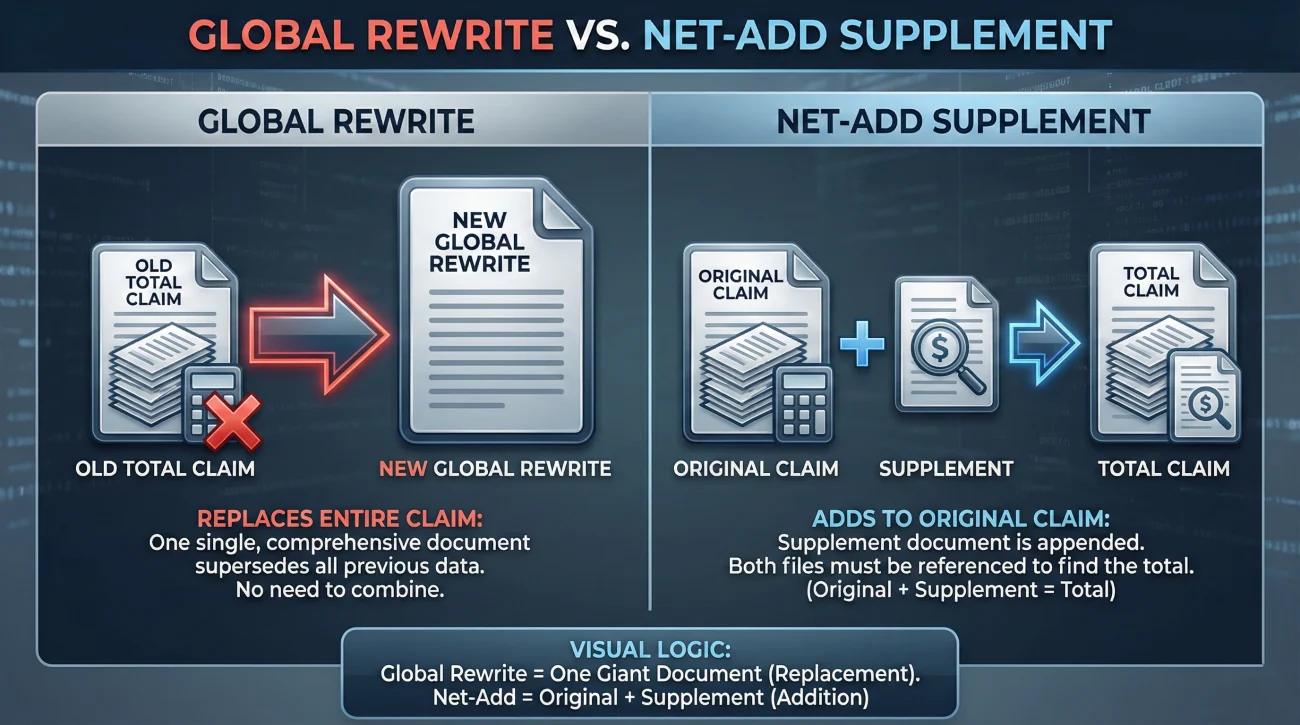
In my experience, adjusters typically use one of two methods to issue revisions. Knowing which one you are looking at is vital for your log accuracy.
Method 1: The Global Rewrite (Full Replacement)
The adjuster adds items to the original file and prints a brand new, massive document. The new total at the bottom represents the entire value of your claim. This is the most common method, and you simply log the new totals as your active baseline.
Method 2: The Supplement Only (Net-Add)
The adjuster leaves the original estimate alone and writes a separate, smaller estimate that only includes the new items. For example, a 2-page document just for a missed fence.
❌ Note: I’ve seen people panic when they receive a Net-Add document because they think their $50,000 claim was just reduced to $2,000. They didn’t cut the claim; they just issued an add-on. You must add the totals together to see your true claim value.
If you have three or four separate supplements, I suggest asking for a “Consolidated Estimate” to make the final review easier for everyone involved.
Final
Tracking estimate revisions is an operational habit that feels tedious on Day 1 but becomes a lifesaver by Day 60. By refusing to overwrite files, sticking to an unambiguous naming convention, and maintaining a version log, you insulate yourself from the confusion that derails so many claims.
My goal isn’t to make you an expert in estimating software. My goal is to help you stay organized enough that you can always point to a specific date and a specific document when asking a question. When you treat the paperwork with this level of discipline, the entire tone of the claim often shifts toward better communication and faster clarity.
❓ FAQ
🗓️ How do I keep track of different insurance estimates?
Use a strict naming convention including the date and version number (V1, V2). Maintain a simple log to track totals and the reason for each change.
📝 Why did the insurance adjuster send a revised estimate?
This usually happens due to supplements from your contractor, new damage found during demolition, or updates to local material and labor pricing.
✍️ Should I sign the first insurance estimate I receive?
Most estimates are evaluations, not final contracts. Review any attached forms carefully; don’t sign anything that releases your right to future supplements before you are certain the scope is complete.
🏗️ What happens when my contractor’s estimate is different from the insurer’s?
You submit the contractor’s bid as a supplement request. This typically triggers a revised estimate from the adjuster once they approve the differences.
📁 How do I organize multiple claim documents?
Keep one master digital folder. Never delete old versions. Rename every incoming file to start with Year-Month-Day so they sort chronologically automatically.
🔄 Can an insurance company change their estimate after paying?
Yes. If hidden damage is found or price increases are proven, insurers can issue revised estimates and supplemental payments.
🔍 What if the revised estimate is missing items we agreed on?
Respond in writing immediately. Acknowledge the receipt of the version but list the specific omissions and ask for a corrected document.
🏷️ What is the best way to name claim files?
I recommend YYYY-MM-DD_V#_Description (e.g., 2023-10-15_V2_Roof_Supplement). This makes files instantly searchable and timeline-accurate.
⚖️ Is a revised estimate a binding final offer?
In property claims, estimates are generally working documents. Unless you sign a specific release form, the estimate can usually be revised further if new evidence is provided.
⏱️ How long does it take to get a revised estimate?
Workloads vary, but if you haven’t received an agreed-upon revision after about a week or so, it is reasonable to send a polite written status request.
⚠️ Disclaimer: PropertyClaimChecklist.com provides practical guidance, process checklists, and example follow-ups to help you organize a property claim and move it forward. It is not policy language, claim documentation, legal content, or a substitute for your insurer's instructions. Always rely on your carrier's requirements and your actual policy terms for what must be submitted and how decisions are made.